
PayMe
PayMe Forms is where you can create your own form or webpage to collect various payments, such as donations, tournament fees, travel expenses, etc. Each PayMe that is created is given its own designated URL and QR code that you can then share with your customers to easily accept multiple payments.
For convenience, Sign-Up and Fundraising form templates already exist. Alternatively, you can use the Custom form to fully modify all fields to better fit your needs.
PayMe Landing Page
All of your active PayMe forms (that you've not set as 'Private') are conveniently located on your organization's designated Landing Page. Rather than having to share each of your PayMe URLs or QR codes, you can choose to share your organization's landing page URL or QR code (or even post it on your website) and direct your customers there to see your full list of active PayMe forms.
To locate your organization's Landing Page URL or QR code, simply click on the text "PayMe Landing Page" and you can choose to open the link, open the QR code, or copy the URL as shown below.
If a PayMe is set as "Private", it will not show on your public landing page
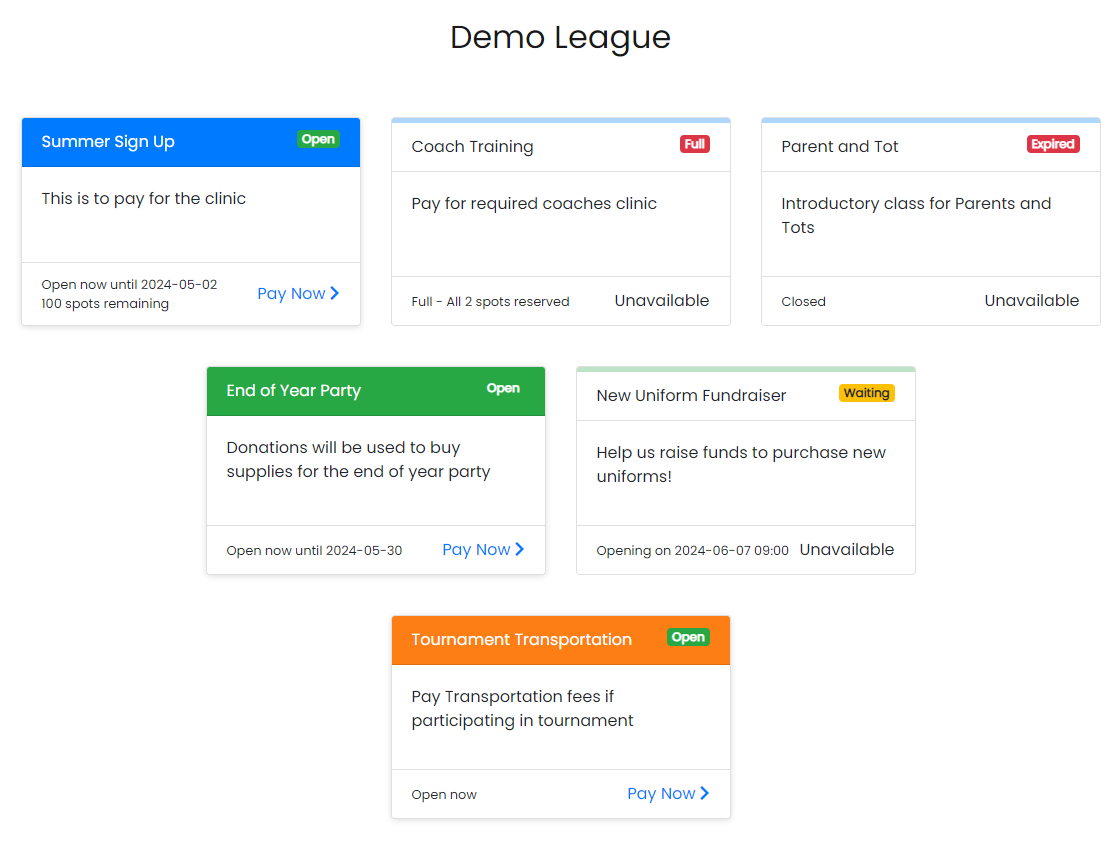
Example of PayMe Landing Page
Each PayMe is colour-coded:
- Sign-Up PayMe's are in blue
- Fundraising PayMe's are in green
- Custom PayMe's are in orange
PayMe's that are inactive (i.e. waiting, closed, or expired) will appear faded.
Once a PayMe has been archived by you, it will no longer appear on the Landing Page.
Viewing your PayMe's
Your PayMe's are organized into two reporting groups:
- Active: PayMe's that are active and have been sent, but have yet to be completed by the Recipient. These include requests with a status of Expired and Security.
- Archived: PayMe's that have been archived by you and are no longer editable. Once you are sure that you no longer need to amend a PayMe, you can archive it. (Note: When you archive a PayMe, this does not affect your ability to refund a payment.)
PayMe Overview
Click on the PayMe name for an overview of your PayMe and to view further details, such as its history and a list of all payments under that PayMe.
Status
Each PayMe can have a different status:
 |
A PayMe that is accepting payments |
 |
PayMe has reached a maximum number of accepted payments and is now closed. If any payments are refunded, it will reopen until it has reached a maximum number of accepted payments. You can always modify the PayMe and increase or decrease the maximum number of accepted payments, should it be required. |
 |
Waiting to open on the PayMe's start date and time as set by you. |
 |
A PayMe that has expired or you have manually closed. To re-open, you must modify the PayMe and update the Expiry Date. |
 |
PayMe has been archived and is no longer editable. |
Actions
Depending on the reporting group you are viewing and the status of the request, there are different Actions available:
 Modify: Modify the PayMe
 Preview: View the PayMe
 Share Link: Copy the URL for the PayMe
 QR Code: View and copy the QR code for the PayMe
 Manually Close: Manually close this PayMe so no further payments can be made. This action can be undone.
 Archive: Permanently archive the PayMe. This action cannot be undone.