
Account Information - Copy
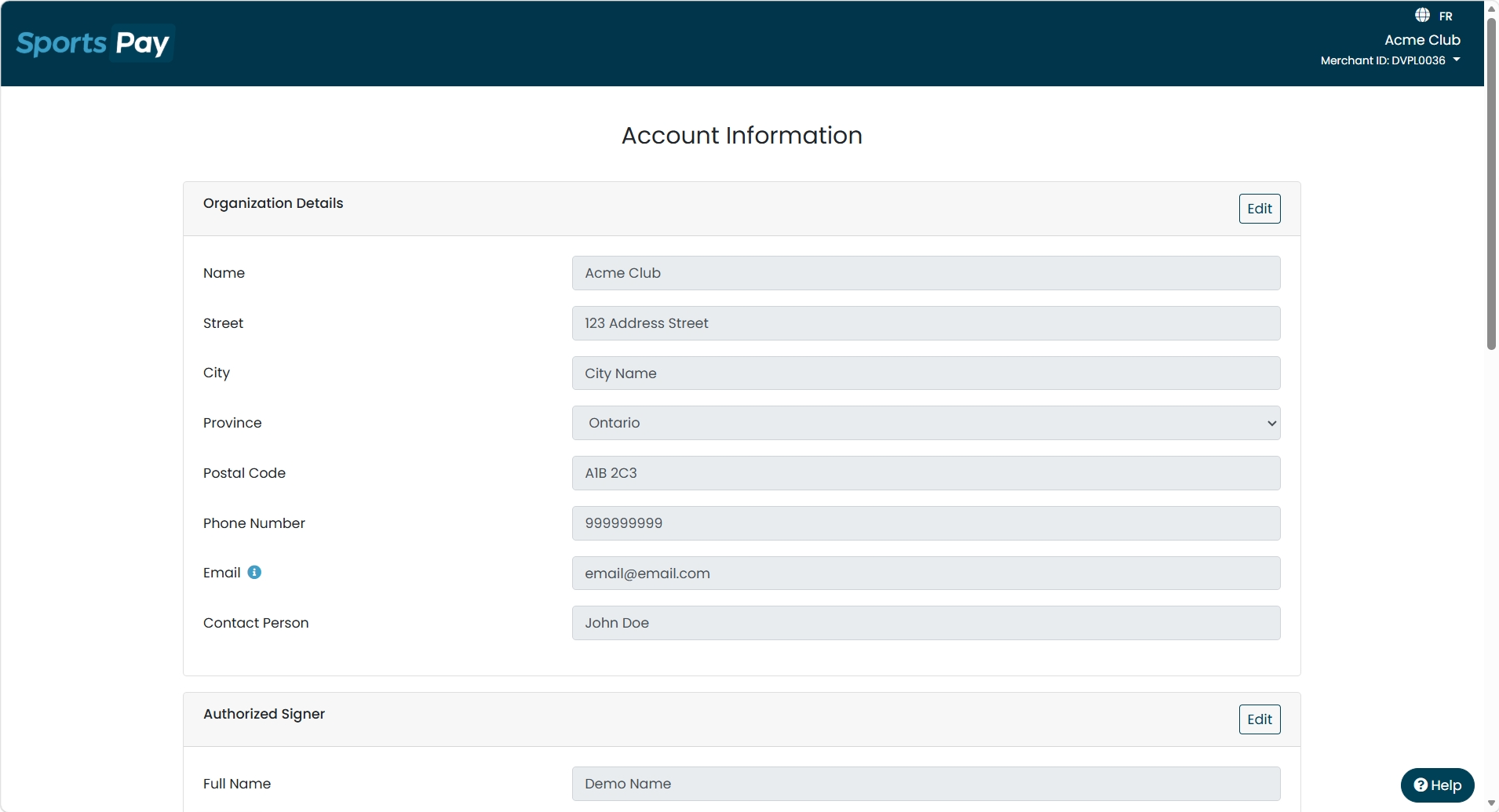
The Account Information page is where you review your organization's details and request changes to them - your business information, authorized signer, banking, what your cardholders see, and requests for new users or payment terminals.
The page is organized into cards. Each card has its own button - Edit for details already on your account, or a Request button for something you want added - and each one is submitted separately.
Nothing on this page changes instantly. Every edit creates a request that our support team reviews and applies. The one exception is your cardholder language setting, which takes effect right away.
How Changes Work
Anyone with a PaymentsHQ login at your organization can start a change. You do not have to be the authorized signer to fill in a request.
Most changes need your authorized signer to sign off. When a request requires a signature, your authorized signer receives an email with a document to sign. They do not need a PaymentsHQ login - the link in the email is enough. Once they sign, our support team verifies and applies the change.
Here is what each request needs:
| What you want to change | Signature needed? | How long it takes |
|---|---|---|
| Organization details | No | Up to 1 business day |
| Authorized signer | Yes | Up to 3 business days after signing |
| Deposit & billing account | Yes | Up to 2 business days after signing |
| Add a PaymentsHQ user | Yes | Up to 2 business days after signing |
| Payment terminal order | Yes | Up to 3 business days after signing |
| CustomerPay opt-in | Yes | Up to 2 business days after signing |
| Cardholder language | No | Immediate |
| Organization logo | No | Reviewed within 24-48 hours |
Even if you are the authorized signer and already signed in, a request that needs a signature is still emailed to you to sign. The signature has to be a separate, deliberate step.
Your account needs a valid authorized signer email on file before any request can be submitted. If you see a message asking you to contact support, get in touch with us and we'll get that sorted first.
Organization Details
This card holds your organization's name, address, phone number, email address, and main contact person.
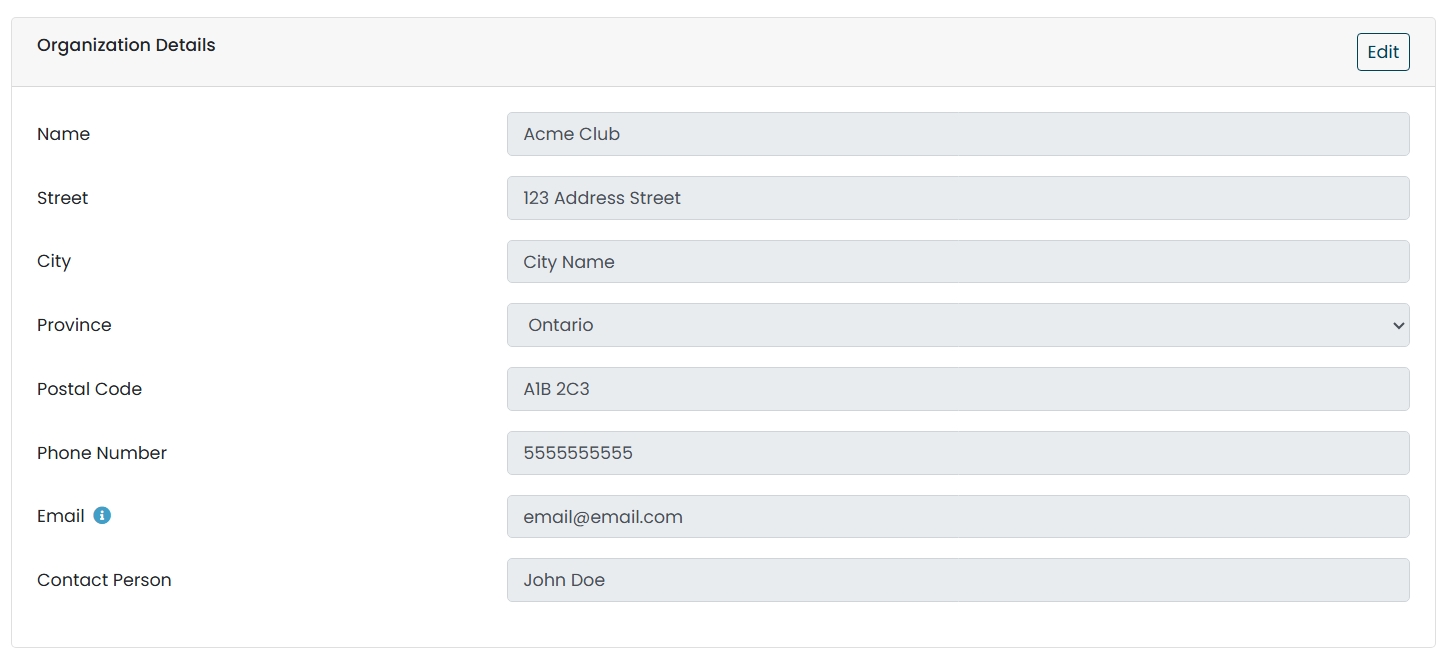
- Select "Edit" on the Organization Details card.
- Update the fields you need to change.
- Select "Submit Changes".
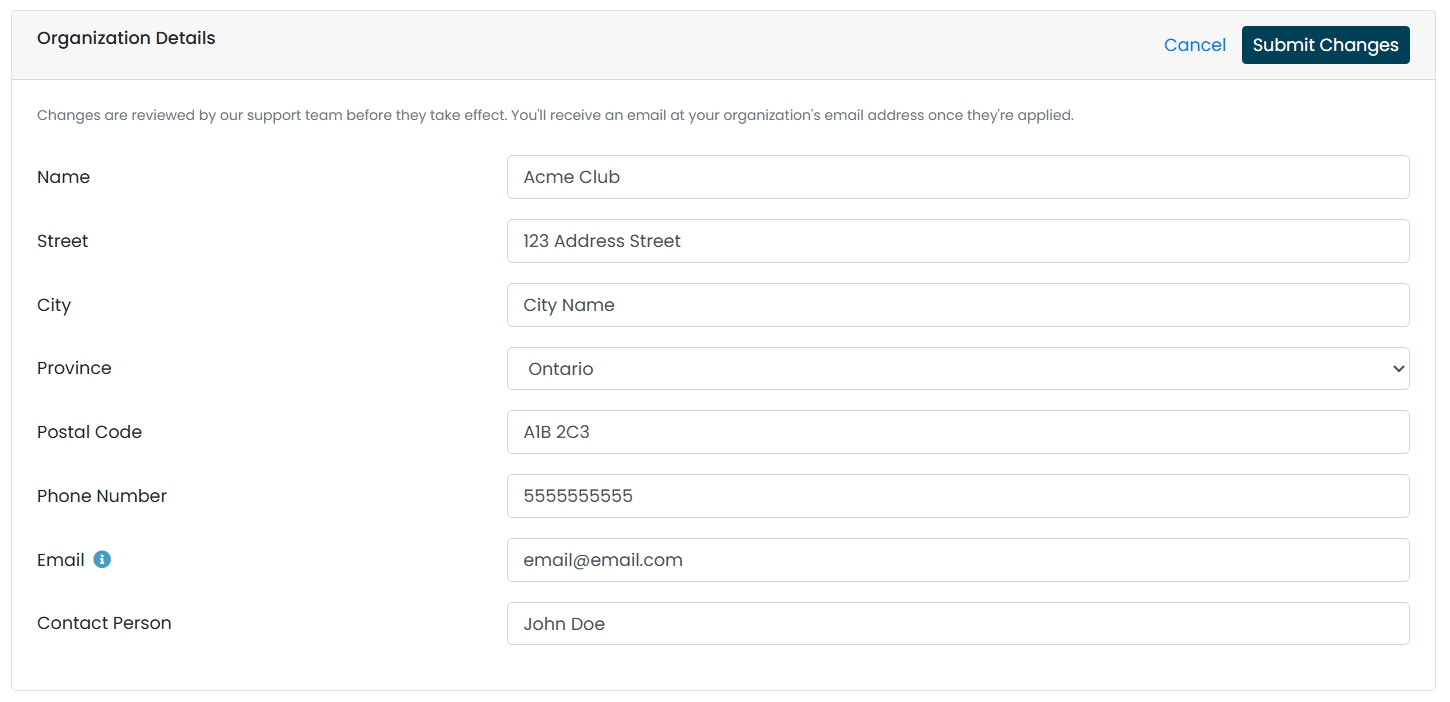
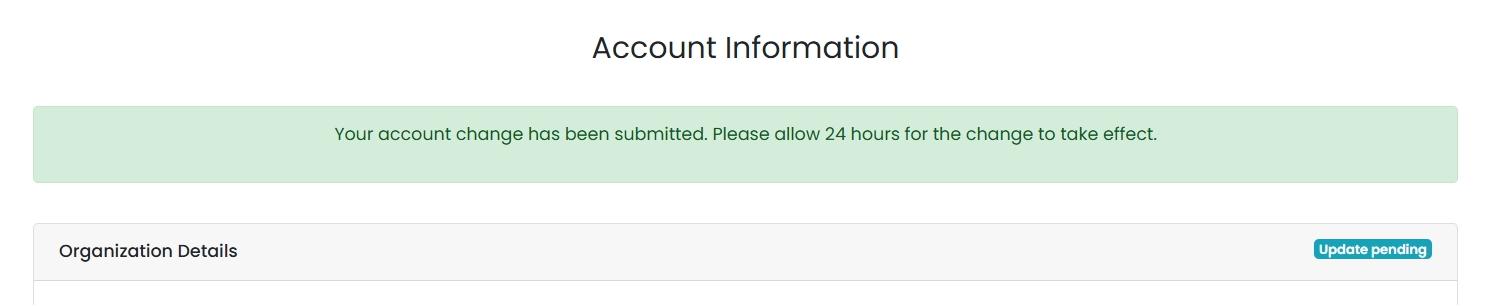
This is one of the few changes that does not need a signature. Once you submit, you will see a green banner confirming the request, and the change is typically applied within 24 hours. You will receive an email at your organization's email address once it has been applied.
The email address on this card is your organization's main contact email - it is where account notices are sent. It is not the same as a PaymentsHQ login.
Authorized Signer
Your authorized signer is the person on file who is authorized to approve changes on behalf of your organization. This card shows their full name, email address, telephone number, and date of birth. The date of birth is masked for security.
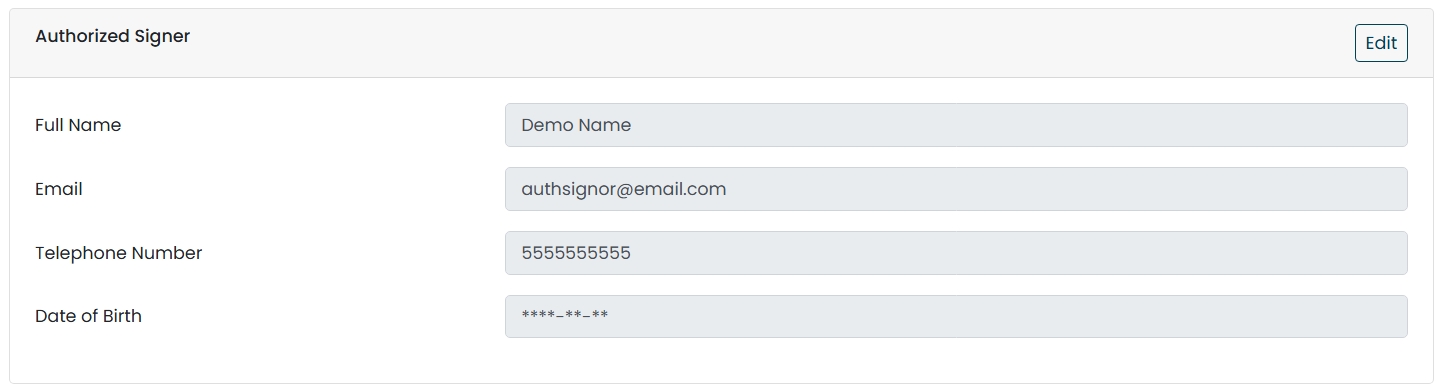
- Select "Edit" on the Authorized Signer card.
- Enter the details of the person taking over the role, including their date of birth.
- Select "Send for Signature".
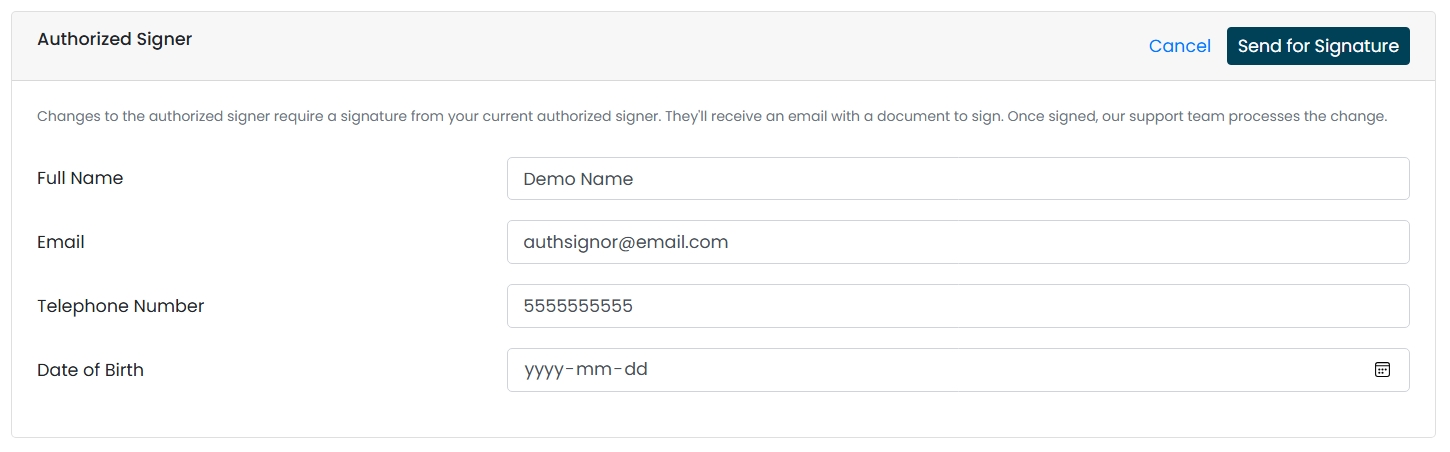
The request is emailed to your current authorized signer to sign. The form confirms two things: that the change is authorized and that the incoming person takes on full responsibility under your agreement, and that the incoming person accepts the appointment as Authorized Signer and Responsible Party.
Why we ask for a date of birth: it is used to confirm the signer is a real, existing person. No credit check is run, and the information is protected. The new signer must be 18 or older.
If your authorized signer has already left the organization and cannot sign, contact our support team - this change will need to be handled manually.
Deposit & Billing Account
This is the bank account your deposits are sent to and your fees are withdrawn from. For security, only the last few digits of the account number are shown.

- Select "Edit" on the Deposit & Billing Account card.
- Select "Choose File" and upload a void cheque, Direct Deposit form, or other bank account confirmation.
- Select "Send for Signature".
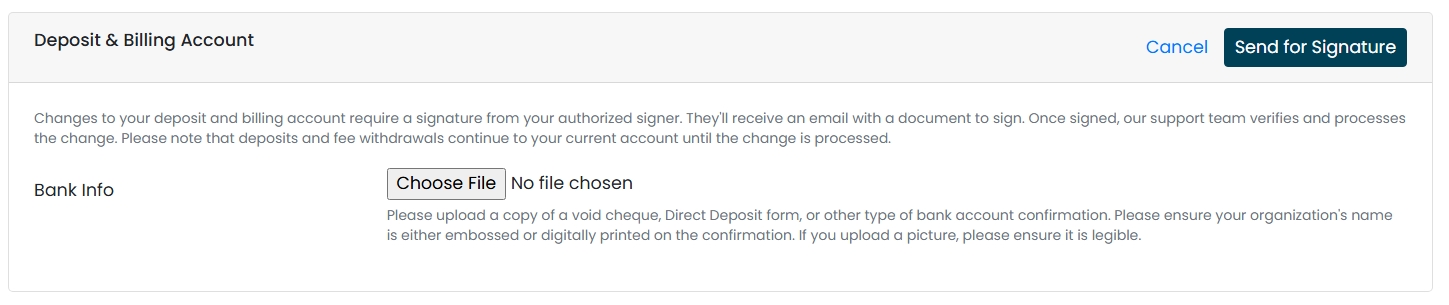
What your document needs to show: your organization's name, either embossed or digitally printed on the confirmation, along with the account numbers. A photo is acceptable as long as it is legible.
Your authorized signer can preview the document you uploaded before signing, and can replace it with a different file if something is wrong or out of date. Whichever document is attached when they sign is the one we process. By signing, they also authorize SportsPay to initiate debits and credits to the account under the Pre-Authorized Debit Agreement / ACH Authorization.
Deposits and fee withdrawals continue to go to your current account until the change has been processed. Nothing moves the moment you submit.
Cardholder Experience
This card controls what your customers see when they pay you.
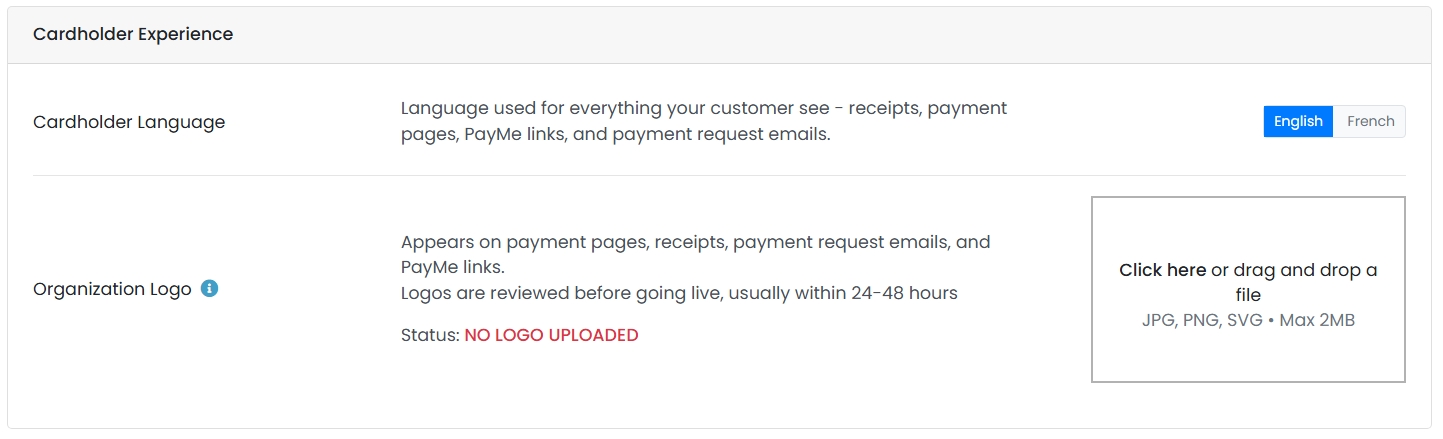
Cardholder Language sets the language used for everything your customers see - receipts, payment pages, PayMe links, and payment request emails. Select English or French to switch. This is the one setting on the page that takes effect immediately; there is no request and no signature.
Organization Logo appears on your payment pages, receipts, payment request emails, and PayMe links. Select "Click here" or drag and drop your file into the upload box.
- Accepted formats: JPG, PNG, or SVG
- Maximum file size: 2 MB
Logos are reviewed before they go live, usually within 24-48 hours. The status beside your logo tells you where it stands:
| Status | What it means |
|---|---|
| NO LOGO UPLOADED | No logo on file yet. |
| NOT VERIFIED | Your logo has been uploaded and is waiting to be reviewed. It is not live yet. |
| VERIFIED | Your logo has been approved and is live on your payment pages, receipts, PayMe links, and payment request emails. |


To replace or remove a logo, select "Remove file" beneath the current image and upload a new one. The replacement goes through review the same way.
Requests
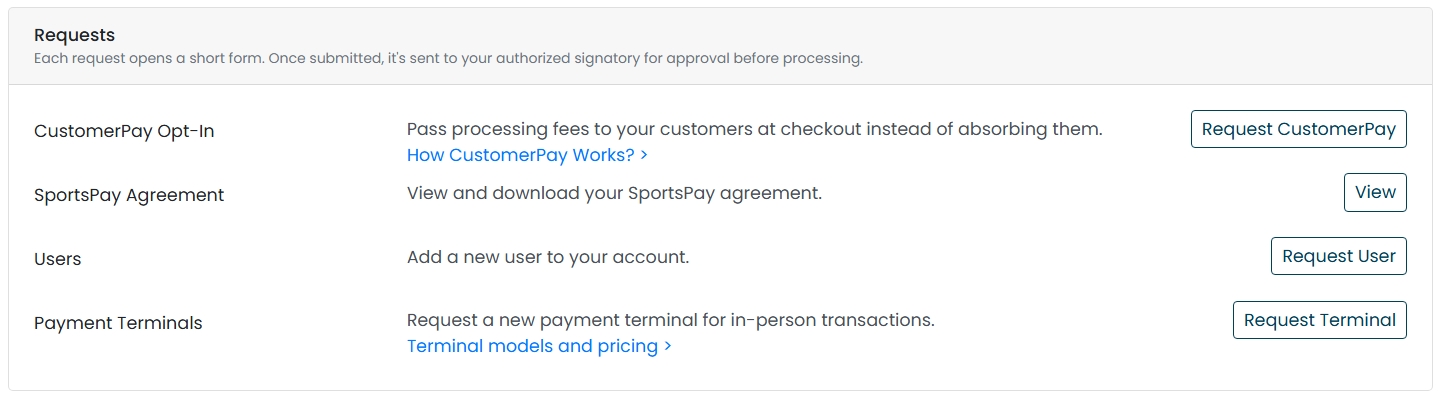
The Requests card is where you ask for things that are not already on your account. Each request opens a short form, and once submitted it is sent to your authorized signer for approval before processing.
Not every request is available to every organization. What you see on this card depends on where your organization is located and how your account is set up. If a request you were expecting isn't on your Account Information page, it isn't available on your account. Contact our support team and we'll let you know what your options are.
CustomerPay Opt-In
CustomerPay lets you pass processing fees to your customers at checkout instead of absorbing them. Select "How CustomerPay Works?" for the details, or "Request CustomerPay" and then "Request" to confirm.
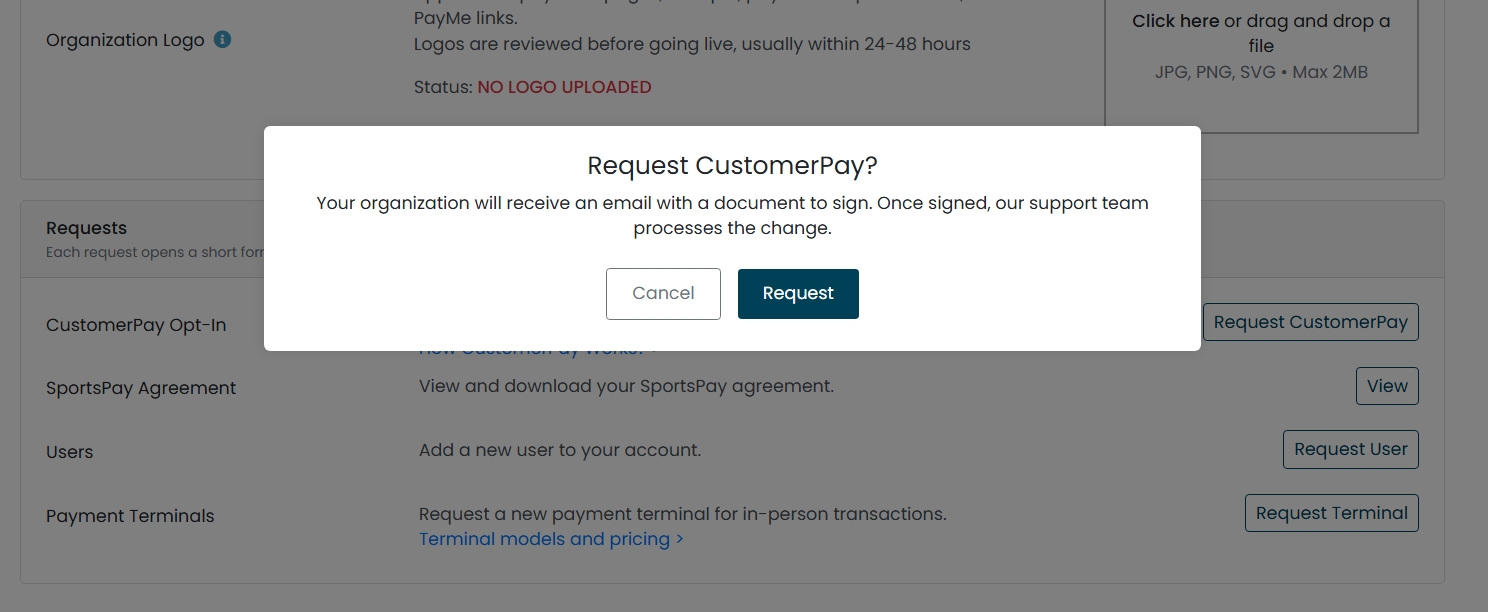
Your organization receives an email with the Customer Pay Addendum to sign. The addendum sets out how the fee works. A few points worth knowing before you sign:
- The fee is paid by the cardholder at checkout and applies consistently to all online transactions.
- It does not apply to manual transactions - card details typed into PaymentsHQ, or a one-time payment using a saved card. You pay standard fees on those. If you also have a payment terminal, terminal transactions are billed as manual transactions.
- The fee is not refunded when a transaction is refunded.
- You handle customer questions, disputes, and complaints about the fee.
- Opting back out later requires a fee amendment.
SportsPay Agreement
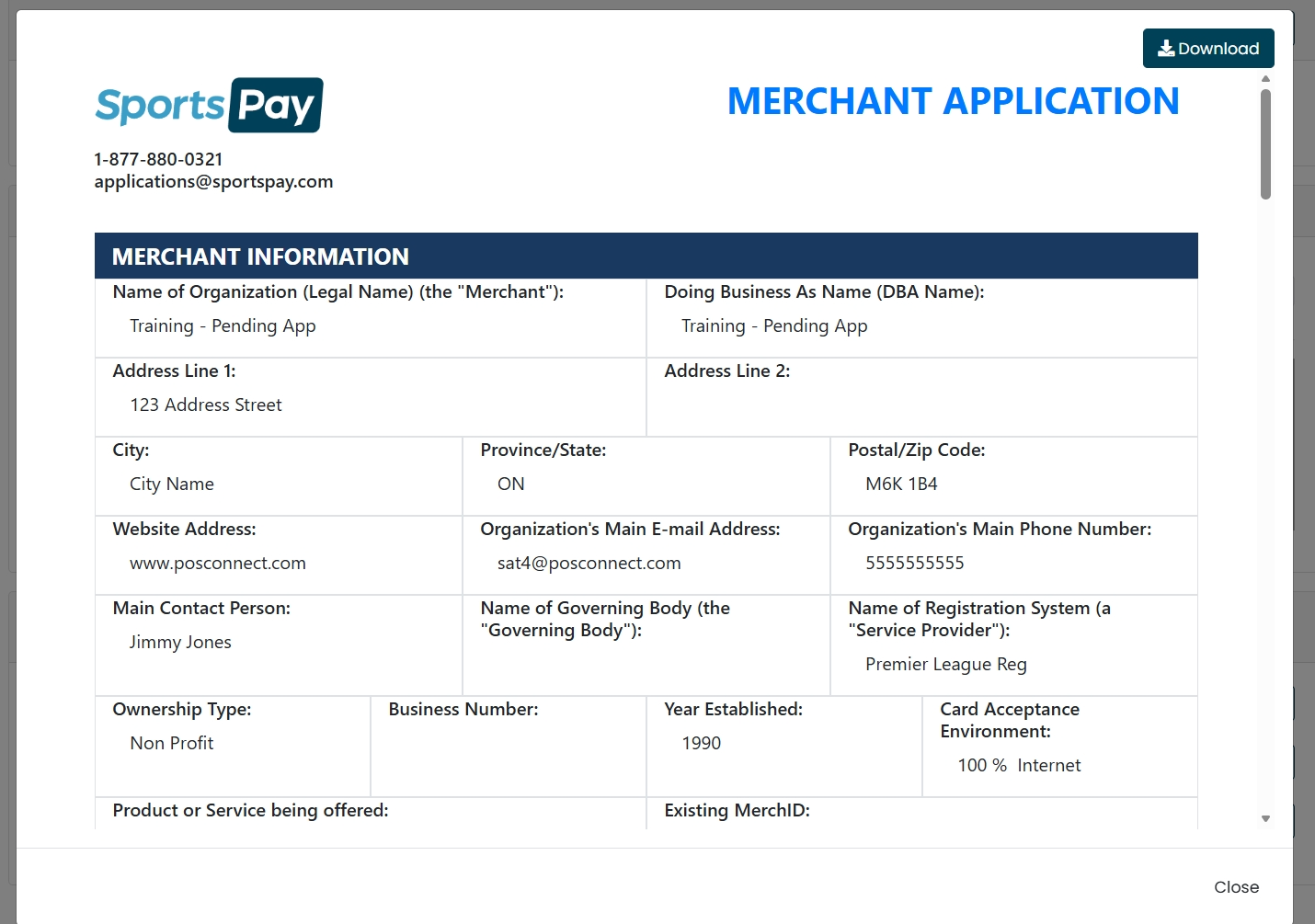
Select "View" to open your SportsPay agreement on screen, or use the Download button to save a copy.
Users
Select "Request User" to add a new person to your account. Enter their full name and email address, then select "Send for Signature".
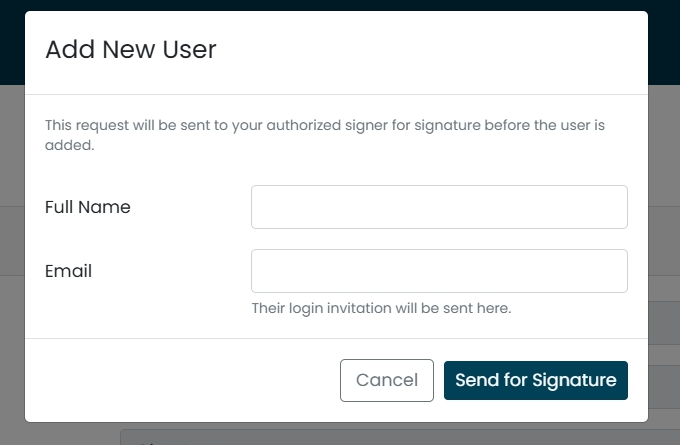
Their login invitation is sent to the email address you enter on this form, so double-check it before submitting. Allow up to 2 business days after signing for the user to be set up.
An authorized user can view reporting, process transactions, and start account change requests. Certain changes - the settlement bank account, pricing model, billing account, and adding another user - still require your authorized signer to sign off. Let us know promptly when someone should no longer have access.
Payment Terminals
Select "Terminal models and pricing" to see what's available and what it costs. To place an order, select "Request Terminal", complete the Terminal Order Form with the number of terminals and your shipping details, then select "Send for Signature".
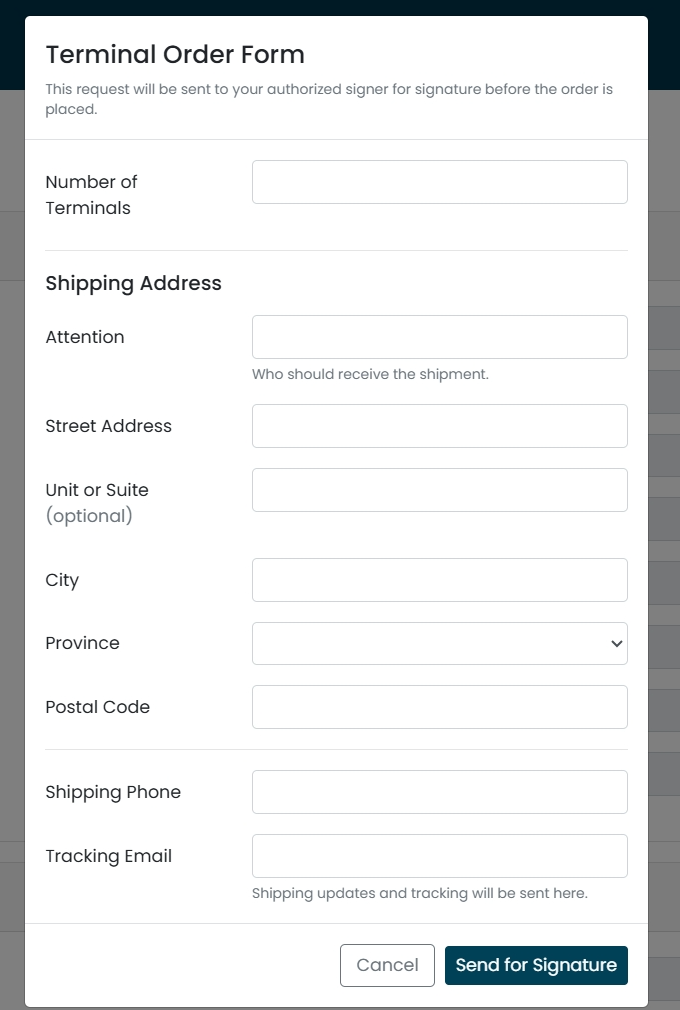
- Attention - who should receive the shipment
- Shipping address - street address, unit or suite (optional), city, province, and postal code
- Shipping Phone
- Tracking Email - shipping updates and tracking are sent here
The minimum order is one terminal. The monthly rental rate, return and replacement terms, and the card types supported are set out in full on the order form your authorized signer reviews and signs - it is worth reading before signing, since terminals are rented rather than purchased. You will be notified when the terminal ships; allow up to 2 business days after signing.
After You Submit a Request
A green banner appears at the top of the page confirming what happened. The wording depends on the type of request.
For organization details, which do not need a signature:
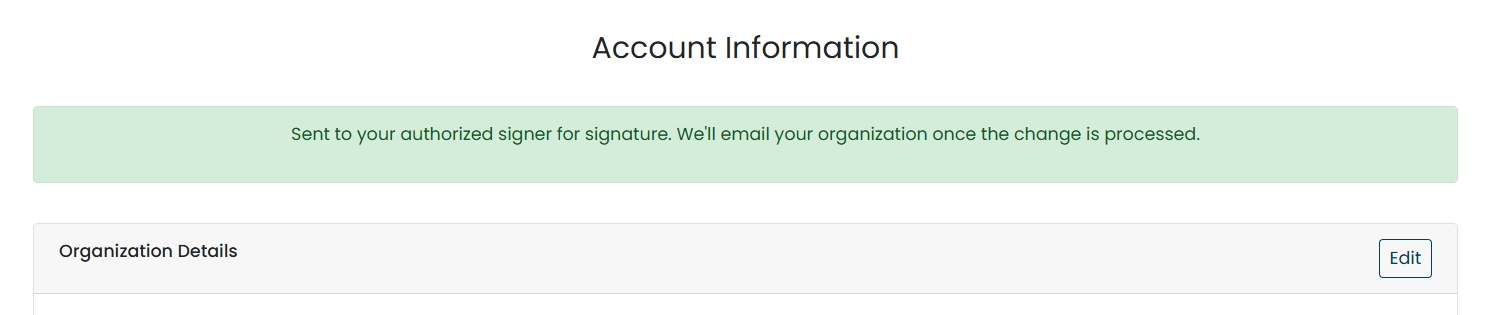
For everything else, which is sent to your authorized signer:
The "Update pending" badge
Once you submit a request, that card locks. The Edit button is replaced by an Update pending badge so you can see we have it and cannot send a second request on top of it. The badge clears and the Edit button returns once we have processed the change.
Only the card you submitted locks. If you have a banking change in progress, you can still update your organization details or order a terminal.
The signing email
If your request needs a signature, your authorized signer receives an email with the subject "Signature required" followed by the name of the form. It names the form and the user ID of whoever submitted it, and includes a "Review and Sign" button along with a plain-text link.
On the form, the signer reviews the request, ticks the consent boxes, and types their printed name - which serves as their electronic signature. The date fills in automatically.
- The link is valid for 30 days. After that it expires and a new one has to be issued.
- A link can only be used once. Once the form is submitted, it cannot be reopened.
- The email is available in English and French, following your organization's language setting.
If you receive a request to sign that you were not expecting, do not sign it. Contact us using the number in the email before taking any action.
Confirmation emails
When a change is complete, we send a confirmation. Who receives it depends on the request:
| Request | Confirmation goes to |
|---|---|
| Organization details | Your organization's email address |
| Authorized signer | The new signer being added |
| Deposit & billing account | Your authorized signer |
| Add a PaymentsHQ user | Your main account email |
| Payment terminal order | Your main account email |
| CustomerPay opt-in | Your main account email and your authorized signer |
Every confirmation includes a copy of the submitted form for your records.
Frequently Asked Questions
I submitted a change - why hasn't it updated yet?
Every edit is a request, not an instant change. If it needs a signature, your authorized signer has to sign first, and then our support team applies it.
Organization details are typically applied within 24 hours. New users and terminal orders can take up to 2 business days after signing.
Why can't I edit a section - the Edit button is gone
That section already has a request open. Look for the Update pending badge where the Edit button used to be. The section unlocks once we have processed the change.
If you need to correct something you already submitted, contact our support team rather than waiting.
Can I edit more than one section at a time?
No. Only one section can be edited at a time. Submit the first change, then edit the next section.
A request I was expecting isn't on my Requests card
Which requests you can make depends on where your organization is located and how your account is set up. If an option isn't showing, it isn't available on your account. Contact our support team and we'll let you know what your options are.
I'm getting an error on a field and can't submit
We check a few things before a request is sent: required fields have to be filled in, phone numbers have to be the right length, email addresses have to be valid, and postal or zip codes have to be in the correct format. A new authorized signer also has to be 18 or older.
The error appears on the field itself, and nothing is submitted until it's corrected.
Do I have to be the authorized signer to request a change?
No. Anyone with a PaymentsHQ login at your organization can fill in a request. The signature - when one is needed - always comes from your authorized signer by email.
The link in my signing email doesn't work
Signing links are valid for 30 days, and each link can only be used once. If the link has expired or the form has already been submitted, contact our support team and we will issue a new one.
I got an email asking me to sign something I wasn't expecting
The email names the form and the user ID of whoever submitted the request, so you can check whether it came from someone at your organization.
If you still were not expecting it, do not sign. Contact us using the number in the email.
Our authorized signer has left the organization
A change of authorized signer is emailed to the current signer on file to approve. If that person is no longer reachable, contact our support team and we will handle the change manually.
Why can't I see everyone who has a login?
The Account Information page does not list your PaymentsHQ users. The email address on the Organization Details card is your organization's main contact email, which is not the same as a login. Contact our support team if you need a list of users on your account.
When will my new bank account start receiving deposits?
Once the change has been signed, verified, and processed. Until then, deposits and fee withdrawals continue to go to your current account.